TL;DR. On November 24, 2026, Framer shipped Automations, Connectors, and the Slack Agent together. Automations are saved Agent instructions that run on a schedule or after a site event like a publish or a form submission. Connectors let the Agent read and act in outside tools such as Slack, Notion, and Ahrefs. The Slack Agent lets your team mention @Framer in Slack to ask about the site or request edits. Both settings live under Site Settings.
Framer Automations are the headline. They let the Agent do a job at 9 a.m. every Monday, or the second a lead fills in your contact form, and then tell your team where they already talk. Connectors are the plumbing that makes the output useful, and the Slack Agent is the doorway back in. This guide sticks to what Framer documented, flags the limits the help center admits, and ends with free Framer templates that give an automation something real to watch.
Framer Automations, Connectors, and Slack Agent at a glance
| Feature | Its one job | Where you set it up |
|---|---|---|
| Automations | Run saved Agent instructions on a trigger, with no one in the chat | Site Settings, Automations tab |
| Connectors | Give the Agent read and write access to outside services | Site Settings, Connectors tab |
| Slack Agent | Let people talk to the Framer Agent from Slack | The Framer app for Slack |
| Slack connector | Let the Agent post to or search Slack as a tool | Site Settings, Connectors tab |
That last row is where people trip. The Slack connector and the Slack Agent are different things, and Framer’s help center says so in both articles. One lets the Agent talk to Slack. The other lets Slack talk to the Agent.
Watch Framer’s Automations walkthrough
Framer linked this video from the release note. It is the quickest way to see the Automations tab and a run history before you open your own project.
What Framer Automations do
An automation is a saved set of instructions plus one or more triggers, a list of tools, and a set of permissions. When a trigger fires, the Agent runs the instructions unattended and records the result.
Triggers you can pick
Framer’s Automations help article lists seven:
- Schedule: once, or repeating hourly, daily, weekdays, weekly, or monthly, in your time zone.
- Publish: after the site goes to production.
- Deploy: when a staging deployment is promoted to your domain (needs staging turned on).
- Branch merge: optionally limited to specific source and target branches (plans with branching).
- New comment, A/B test status, and Form submit for a selected form.
You can stack several triggers on one automation, and any of them starts a run. Instructions can pull in details from the trigger, like the submitted form fields or who published. Framer also says form submissions are treated as data, never as instructions. That matters, because a visitor typing “ignore your rules” into your contact form should not steer the Agent.
Capabilities: decide what it may touch
Each automation has three switches: Edit (canvas, CMS, settings), Publish, and Code (code components and overrides). Turn all three off and the automation is read only. It can still inspect the project and send a report. For anything that only reports, that is the setting you want.
Delivery and review
Results go out by email (only to members of the workspace) or to a Slack channel. Framer does not support Slack DMs for automation output and suggests public channels. The Runs tab shows trigger, time, duration, credits, and status for every run.
Here is the honest weakness: Success only means the run finished. Framer’s own article says to read the first few results yourself. An audit that “succeeded” can still flag the wrong page if your instructions were vague. Automations also cannot stop and ask you a question mid-run, so channel names and recipients have to be settled at setup.
Every run spends AI credits from the workspace, the same as a chat. A weekly report is cheap. An hourly site audit on a large project is not. Framer’s advice is short instructions, a schedule that matches how often you actually read the result, and disabling what you no longer use.
What Framer Connectors add
Connectors hook the Agent up to outside services. The Connectors help article lists ten at launch: Notion, Ahrefs, Typefully, Loops, Slack, BigQuery, Google Analytics, Google Sheets, Google Docs, and Google Cloud Resource Manager.
You connect one under Site Settings, Connectors, sign in to the service, and approve access. After that, type @ in Agent chat or in an automation’s instructions to reference it. In an automation, naming a service in the text is not enough. You must also add it under Tools, or the run cannot use it.
Three details worth knowing before you connect anything:
- Connections are personal and per project. A collaborator’s Agent uses the services they connected, not yours.
- Tool access is all or nothing for now. You cannot switch off individual actions inside a connector. If the Tools list includes “send message” and you do not want that, disconnect the service.
- No custom MCP servers. Only the listed services work. If you want an outside agent working on Framer, that is Framer MCP, a separate feature.
How the Framer Slack Agent works
Install the Framer app in Slack, sign in to your Framer account, then mention @Framer in a channel or send it a DM. Paste the project link when you start, especially if you work across several projects. The Slack Agent help article suggests it for site questions, analytics checks, and small content edits.
The safety rails are good. The Slack Agent makes changes on a branch, so nothing goes live until you ask it to merge and publish. Every person connects their own Framer account, and the Agent checks their access on each request. It needs Design permission or higher, even just to answer questions. Joining a Slack channel grants nobody access to the project.
The catch: Framer says a paid Slack plan is required to use the AI agent in Slack’s app container. And Slack is a poor place to judge a layout. Use it for “update the opening hours in the Locations CMS,” then open Framer to look at anything visual.
Three workflow recipes to try this week
Lead alert with a one-line summary
Booking requests arrive through a site form and sit in an inbox until someone remembers to check.
- Connect Slack under Site Settings, Connectors, then create an automation with a Form submit trigger on the booking form.
- Write the instructions: summarize the request in two lines, name the service and area asked about, and post to #new-leads.
- Add Slack under Tools, turn Edit, Publish, and Code off so the run is read only, then submit a test entry and read the first result.
An SEO check every time you publish
Editors push blog posts on their own and missing meta descriptions or broken links slip through.
- Create an automation with a Publish trigger. Scope the instructions to the blog collection, not the whole site.
- Ask for a short list: missing SEO fields, broken links, and typos, with the page link for each.
- Send the list to one workspace email or a Slack channel. Leave Edit off until you trust the findings.
A Monday analytics note
A client asks "how is the site doing?" every week and you answer by screenshot.
- Schedule an automation weekly on Monday morning in your time zone.
- Ask it to compare visitors, top pages, and form submissions with the prior week and name up to three changes worth acting on.
- Post it to the shared client channel, then let people follow up by mentioning @Framer in the thread if the Slack Agent is installed.
Who this helps
- Small business owners who want a Slack ping for every booking without wiring up a third-party form tool.
- Content teams that publish often and want a second pair of eyes after each push.
- Agencies that report to clients weekly and want the report to write itself, with credits tracked per run.
- Not everyone. A one-page portfolio with no form and no blog has little to automate. Spend the credits elsewhere.
Free Framer templates to automate first
An automation needs an event to react to. These three free Framer templates each have one: a booking form, a CMS blog, or a busy set of fee and contact routes. Automations are a project setting, so remixing a file does not bring any automations with it. You set them up after the remix.
 Live Preview
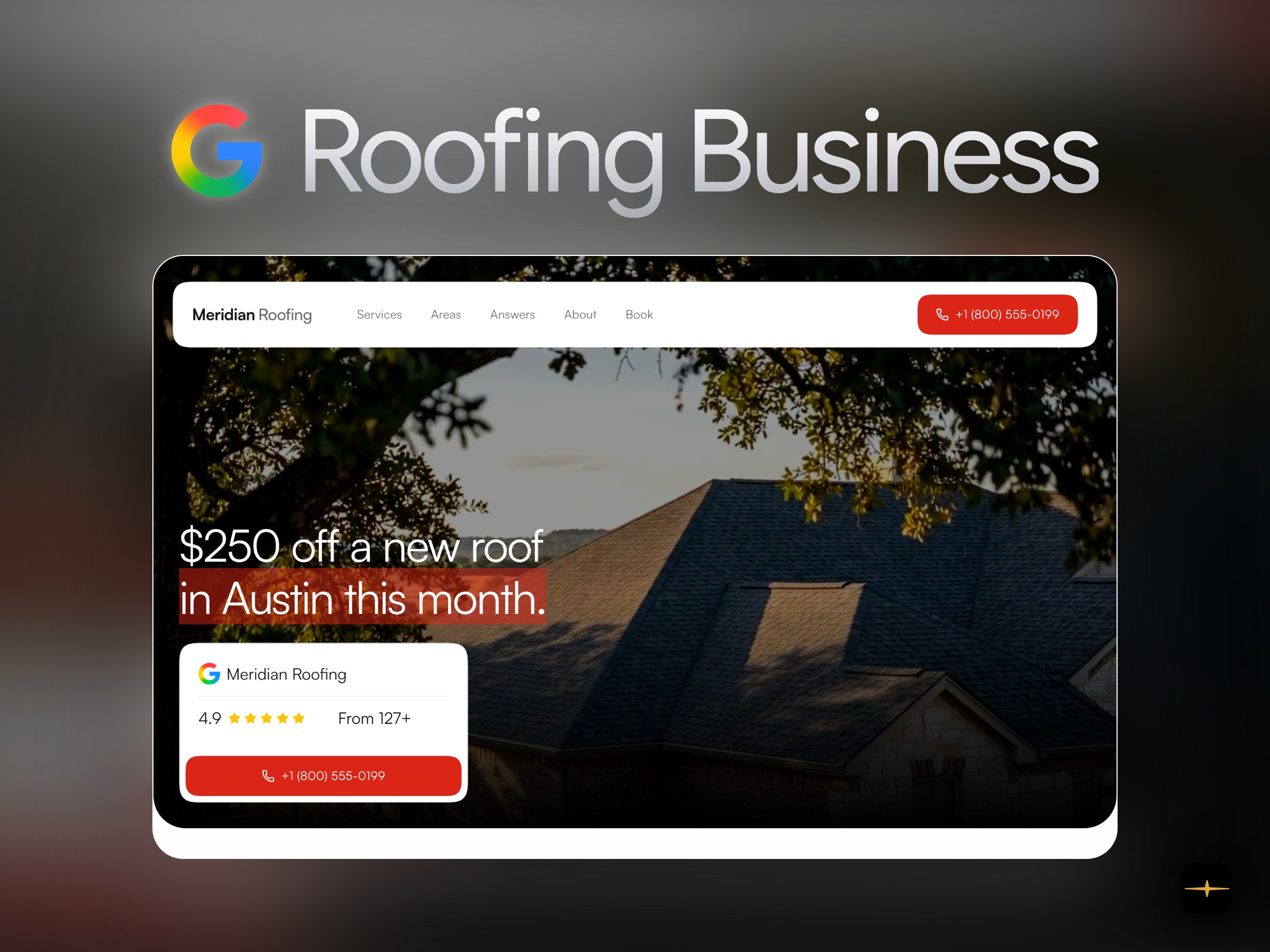
Aes Roofing · Eight-page roofing site with Areas, Answers, and a Book route
by Unknown
Aes Roofing funnels homeowners toward a single Book page, which is exactly the shape a lead-alert automation wants: one form, one trigger, one channel. The Areas page also gives the summary something useful to mention. Skip it if you want a weekly blog to audit, because there is no CMS here. FlowPro is the fuller trade file, and the home services shortlist has more.
- Best for
- A first Form submit automation that posts each inspection request to Slack
 Live Preview
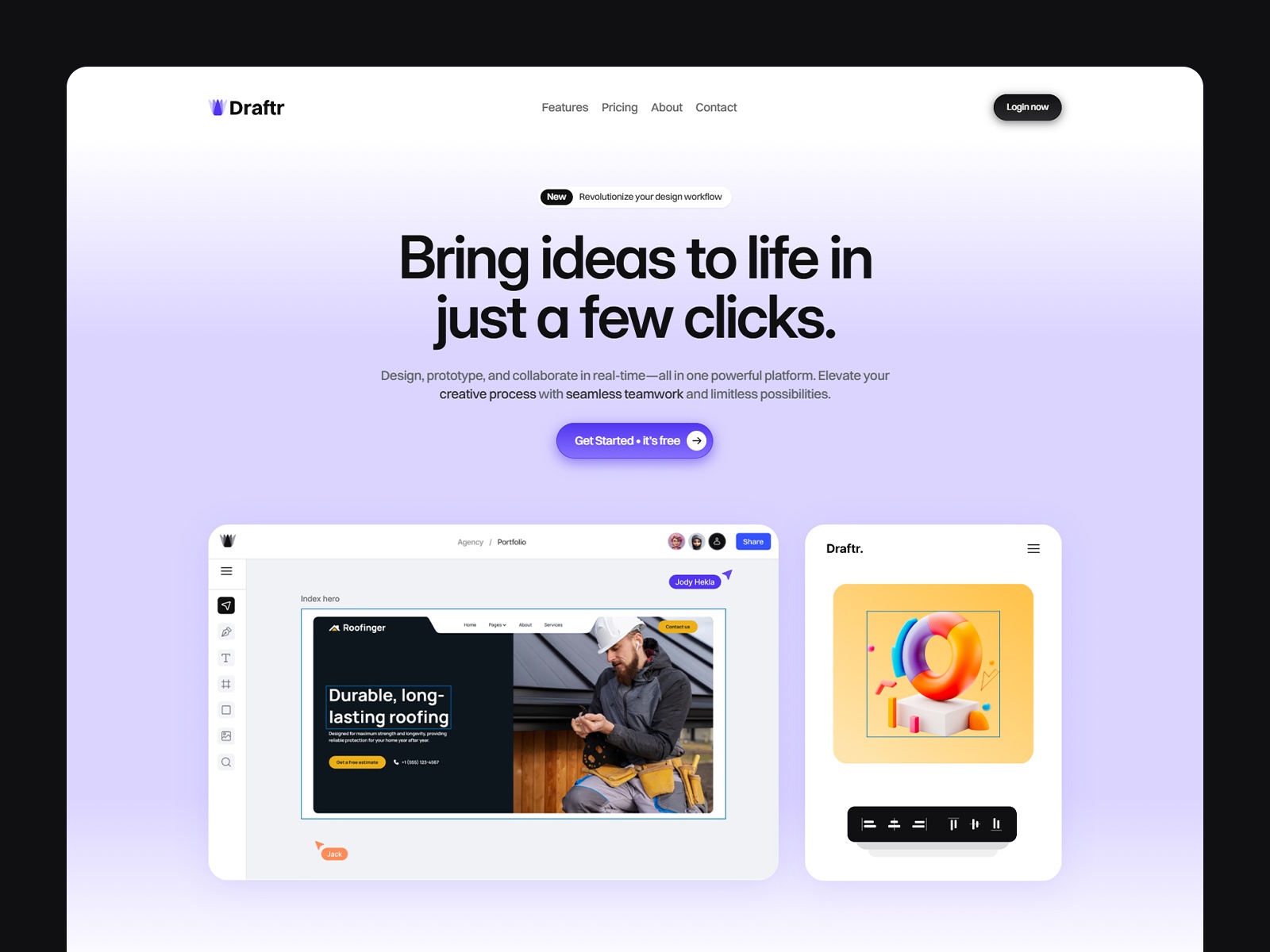
Draftr · Ten-page SaaS site with a CMS blog, Changelog, and Waitlist
by Salim from Webestica
Draftr by Salim from Webestica ships a CMS blog and a Changelog, so a Publish trigger always has fresh pages to review. The Waitlist route makes a tidy Form submit test as well. Skip it if your brand needs loud visuals. The light, minimal style reads generic until you restyle it. Compare it with the SaaS shortlist before you commit.
- Best for
- Publish-triggered SEO checks on blog posts plus a weekly waitlist report
 Live Preview
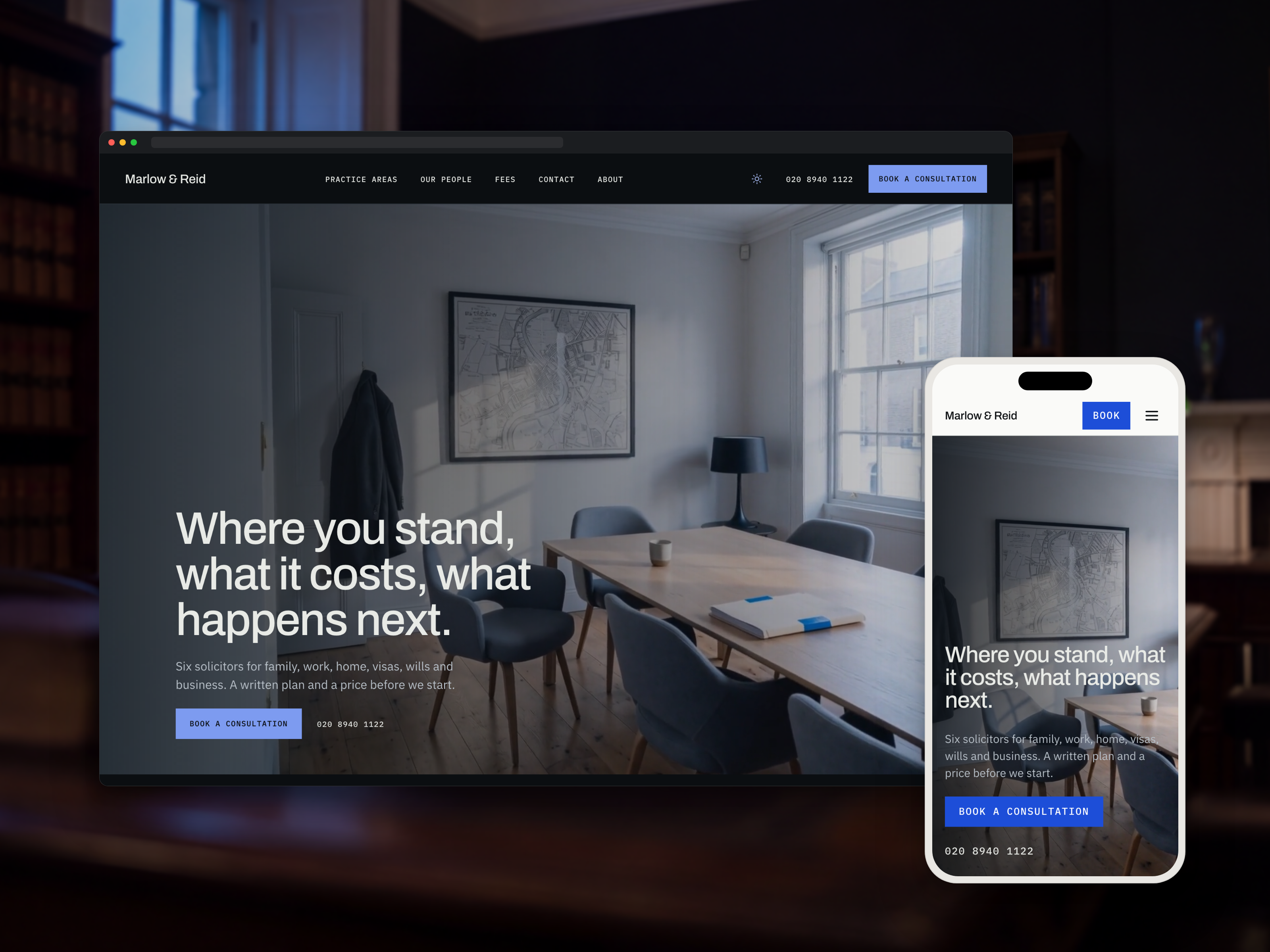
Counsel · Twelve static legal pages with Fees, Book, and solicitor profiles
by Unknown
Counsel has both Contact and Book, so you can route the two forms to different people with two automations. Twelve routes also make a scheduled audit worth running. Skip it if you publish articles, since every page is static and a Publish trigger will have little new to check. Grelix is the CMS legal pick, and the legal shortlist covers the rest.
- Best for
- A small firm that wants consult requests routed and a monthly site audit by email
Official sources and where to go next
- Release note: Automations, Connectors, and Slack Agent, November 24, 2026.
- How to use Framer Automations: triggers, capabilities, runs.
- How to set up and use Framer Connectors: the service list and troubleshooting.
- How to use the Framer Slack Agent: install, permissions, branches.
- Framer Agent Skills on yoframer: automation instructions can call skills with /.
- All yoframer Framer updates and the full template grid.
The bottom line
Automations are the part to try first. Pick one trigger, one result, and one channel, keep the run read only, and read the first three outputs before you trust the green status. Add Connectors when the result needs to land somewhere other than email. Add the Slack Agent when your team would rather ask a question in a thread than open the editor.
Need a project to test on? Remix one from the free Framer templates hub, set up a single form alert, and open Framer to watch it run.